Solflare logo
  • Product
    • Overview
    • Essentials
    • Security
    • Trading
    • Staking
    • Cards
    • Shield - Hardware walletnew
    • Magic - AI Assistantnew
  • Token Prices
  • Resources
    • Overview
    • Crypto 101
    • App Guides
    • FAQs
    • Glossary
  • Explore Solana
    • Overview
    • Ecosystem
    • News
    • Events
Download nowDownload now
  • Product
    • Overview
    • Essentials
    • Security
    • Trading
    • Staking
    • Cards
    • Shield - Hardware walletnew
    • Magic - AI Assistantnew
  • Token Prices
  • Resources
    • Overview
    • Crypto 101
    • App Guides
    • FAQs
    • Glossary
  • Explore Solana
    • Overview
    • Ecosystem
    • News
    • Events
Enter the stronghold

Solflare: the most powerful wallet on Solana

Solflare logo
Download nowDownload now
Access walletAccess wallet
  • Privacy Policy
  • Sitemap
  • Brand Kit
  • Product

    • Overview
    • Essential features
    • Security
    • Trading
    • Staking
  • Education

    • Resources
    • Explore Solana
  • Company

    • About
    • Careers
    • Contact
Solflare

THE STRONGHOLD OF THE FREE
POPULATION 3,000,000+ . EST 2021

HOLD STRONG

Copyright ©2026 Solflare.

Home/Token Prices/RETIRE Price/How to buy

How to buy One Last Play with your Solflare wallet?

Easiest ways to buy, swap, or transfer RETIRE directly into your Solflare wallet—step by step.

Looking to buy One Last Play? You can buy RETIRE easily using the Solflare Wallet, whether you prefer to use crypto or pay with fiat, like a credit card or bank transfer. Follow these steps to buy One Last Play using the Solflare mobile app or the browser extension.

Once you own RETIRE, Solflare lets you send it privately using the built-in Privacy Aggregator, and you can secure your holdings with a Solflare hardware wallet for maximum protection.

One Last Play Buying Guide: How to Buy One Last Play with Crypto Using Solflare Mobile app

Buy One Last Play (RETIRE) directly in the Solflare mobile app by swapping from SOL or other supported tokens. This guide walks you through each step, from funding your wallet to confirming your swap—no third-party DEX required.

One Last Play Buying Guide: How to Buy One Last Play with Crypto Using Solflare Mobile app
Step 1

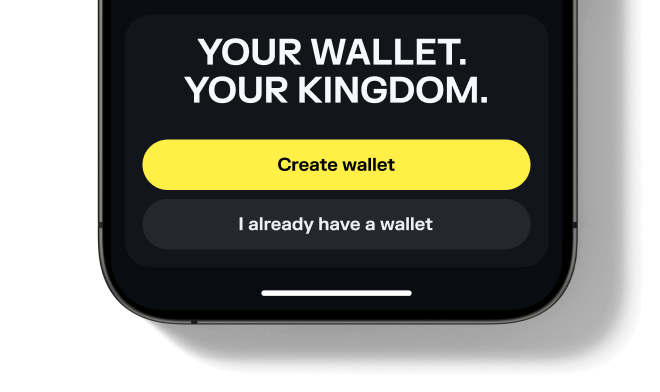
Set up or Open your Solflare Wallet

Step 1 - Set up or Open your Solflare Wallet
One Last Play Buying Guide: How to Buy One Last Play with Crypto Using Solflare Mobile app
Step 1

Set up or Open your Solflare Wallet

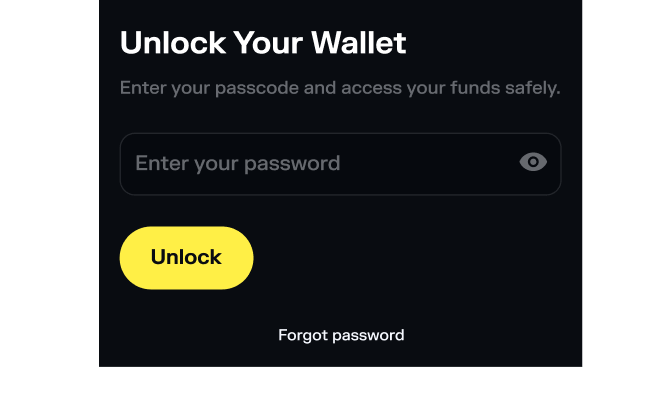
Download and open the Solflare mobile app on your device. Log in to your existing wallet, or create a new one directly in the app.

Don't have an account yet? See our beginner's guide to setting up a Solflare wallet.
One Last Play Buying Guide: How to Buy One Last Play with Crypto Using Solflare Mobile app
Step 1

Set up or Open your Solflare Wallet

Step 1 - Set Up or Open Your Solflare Extension Wallet
One Last Play Buying Guide: How to Buy One Last Play (RETIRE) with Crypto Using Solflare Extension
Step 1

Set Up or Open Your Solflare Extension Wallet

Download and install the Solflare extension for your browser. Once installed, open the extension and log in to your wallet. If you're new to Solflare, click "I need a new wallet" to create one in minutes.

Need help? Follow our step-by-step Solflare wallet setup guide.
One Last Play Buying Guide: How to Buy One Last Play with Crypto Using Solflare Mobile app
Step 2

Deposit SOL or another supported token
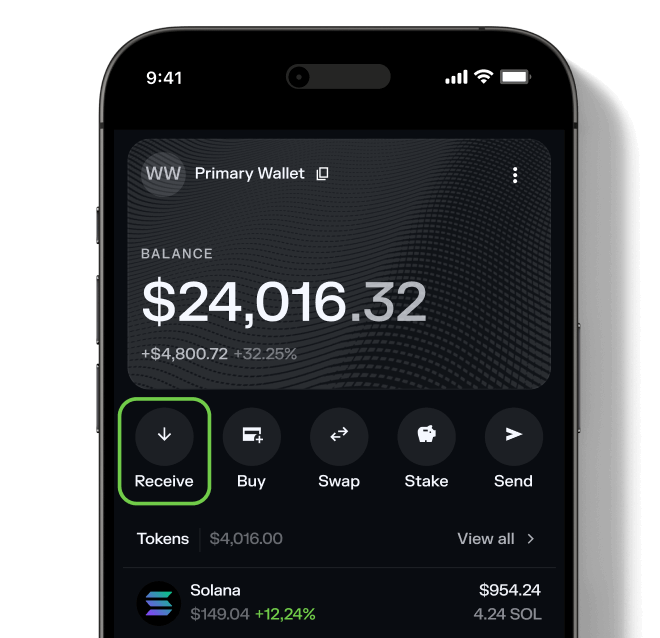
Step 2 - Deposit SOL or another supported token
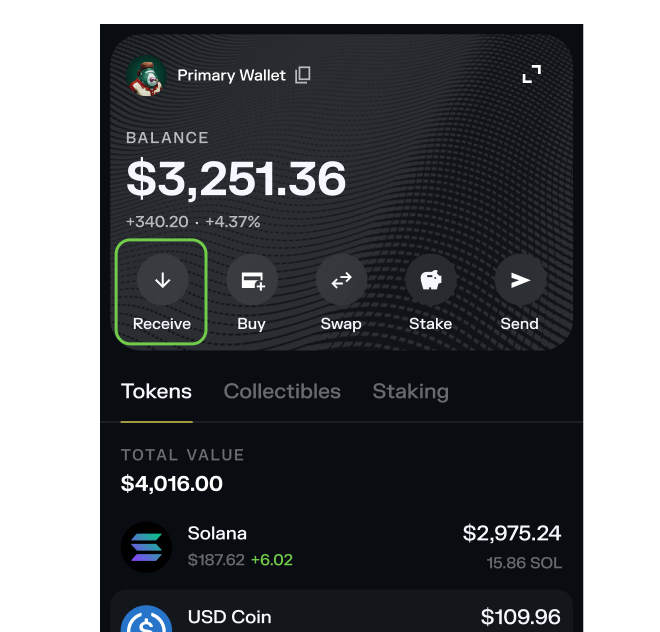
One Last Play Buying Guide: How to Buy One Last Play with Crypto Using Solflare Mobile app
Step 2

Deposit SOL or another supported token

Transfer SOL or any supported SPL token into your Solflare wallet. You can send funds from a centralized exchange, another wallet, or even purchase SOL with fiat directly inside the Solflare app.

Need help? Read our detailed guide on transferring tokens to Solflare.
One Last Play Buying Guide: How to Buy One Last Play with Crypto Using Solflare Mobile app
Step 2

Deposit SOL or another supported token

Step 2 - Deposit SOL or another supported token
One Last Play Buying Guide: How to Buy One Last Play (RETIRE) with Crypto Using Solflare Extension
Step 2

Deposit SOL or another supported token

Transfer SOL (or another SPL token) to your Solflare wallet. You can send it from a centralized exchange or another wallet, or buy it with fiat directly in the Solflare app.
One Last Play Buying Guide: How to Buy One Last Play with Crypto Using Solflare Mobile app
Step 3

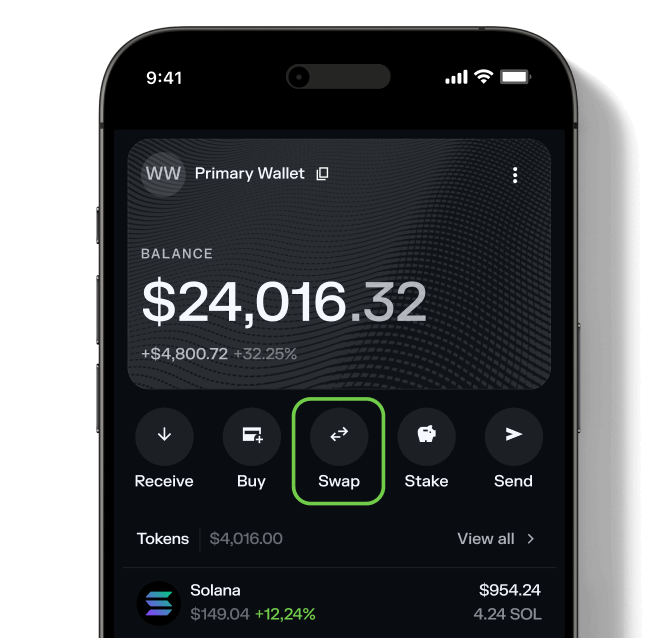
Go to the Swap tab

Step 3 - Go to the Swap tab
One Last Play Buying Guide: How to Buy One Last Play with Crypto Using Solflare Mobile app
Step 3

Go to the Swap tab

Tap on the Swap tab inside your wallet. This feature lets you trade tokens directly—no need for a separate DEX.
One Last Play Buying Guide: How to Buy One Last Play with Crypto Using Solflare Mobile app
Step 3

Go to the Swap tab

Step 3 - Go to the Swap tab
One Last Play Buying Guide: How to Buy One Last Play (RETIRE) with Crypto Using Solflare Extension
Step 3

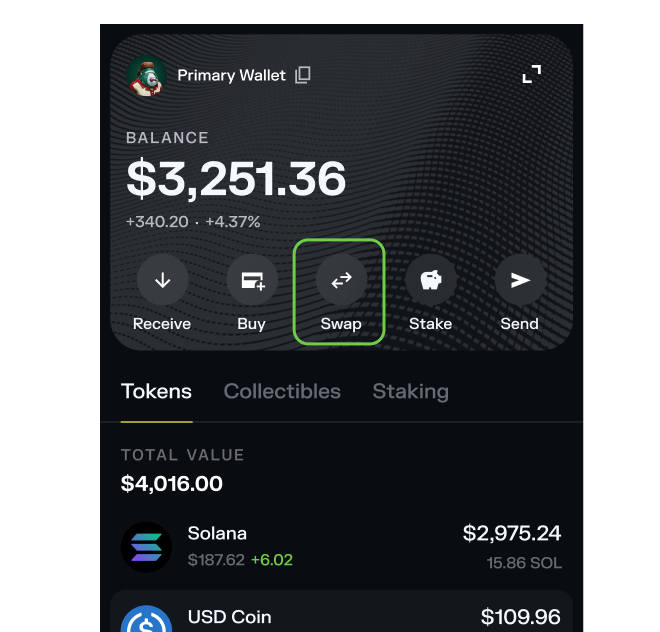
Go to the Swap tab

Navigate to the Swap section in your Solflare browser extension on the right side of your home screen (Portfolio tab) or click on the Trade tab from the menu on the left. Solflare's Swap feature lets you exchange tokens instantly—no need for third-party DEXs or leaving your wallet.
One Last Play Buying Guide: How to Buy One Last Play with Crypto Using Solflare Mobile app
Step 4

Select One Last Play

Step 4 - Select One Last Play
One Last Play Buying Guide: How to Buy One Last Play with Crypto Using Solflare Mobile app
Step 4

Select One Last Play

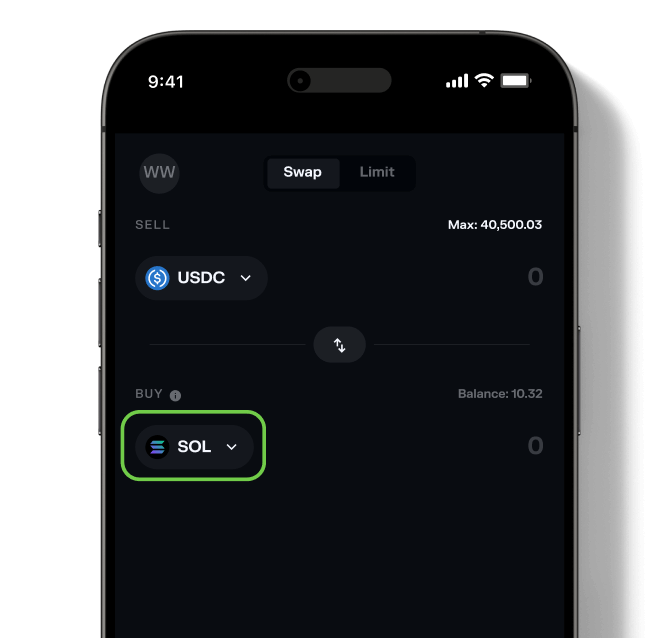
Choose One Last Play (RETIRE) as the token you wish to purchase. Then, select the asset you want to swap from (for example, SOL or USDC) and enter the amount you want to buy.

Want to see what else you can buy? Explore all tokens available on Solflare.
One Last Play Buying Guide: How to Buy One Last Play with Crypto Using Solflare Mobile app
Step 4

Select One Last Play

Step 4 - Select One Last Play
One Last Play Buying Guide: How to Buy One Last Play (RETIRE) with Crypto Using Solflare Extension
Step 4

Select One Last Play

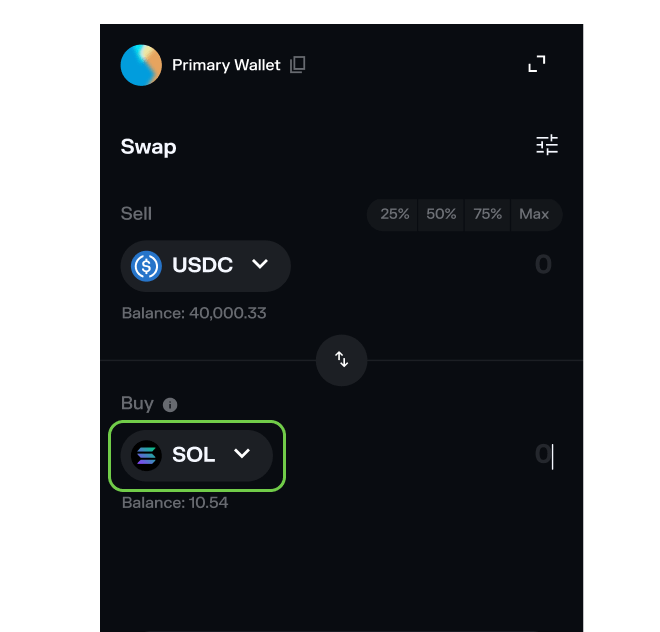
Choose One Last Play (RETIRE) as the token you want to buy. Then select the token you wish to swap from (like SOL or USDC), and enter the amount you'd like to exchange.

Want to see all available tokens? Browse the full list of tokens supported on Solflare.
One Last Play Buying Guide: How to Buy One Last Play with Crypto Using Solflare Mobile app
Step 5

Confirm the swap

Step 5 - Confirm the swap
One Last Play Buying Guide: How to Buy One Last Play with Crypto Using Solflare Mobile app
Step 5

Confirm the swap

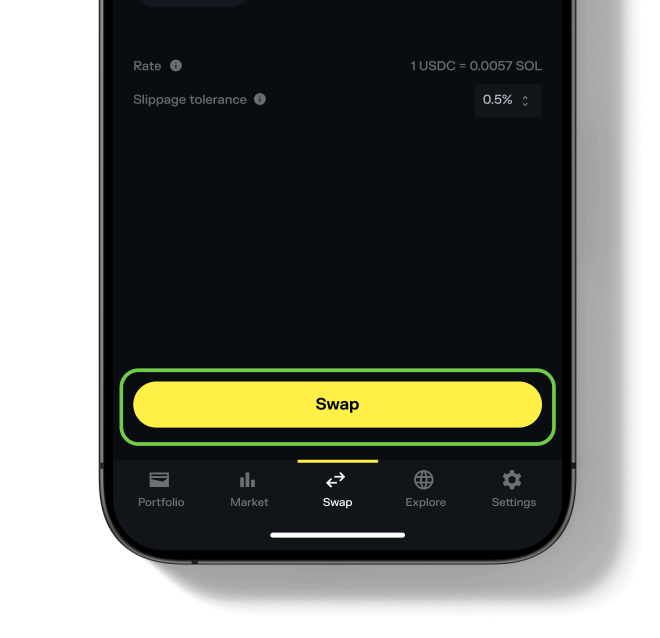
Hit "Swap", review the details, and then "Slide to approve". Your new One Last Play tokens will appear in your wallet once the transaction is complete.

Need more help? See our full guide to swapping tokens with Solflare.
One Last Play Buying Guide: How to Buy One Last Play with Crypto Using Solflare Mobile app
Step 5

Confirm the swap

Step 5 - Confirm the swap
One Last Play Buying Guide: How to Buy One Last Play (RETIRE) with Crypto Using Solflare Extension
Step 5

Confirm the swap

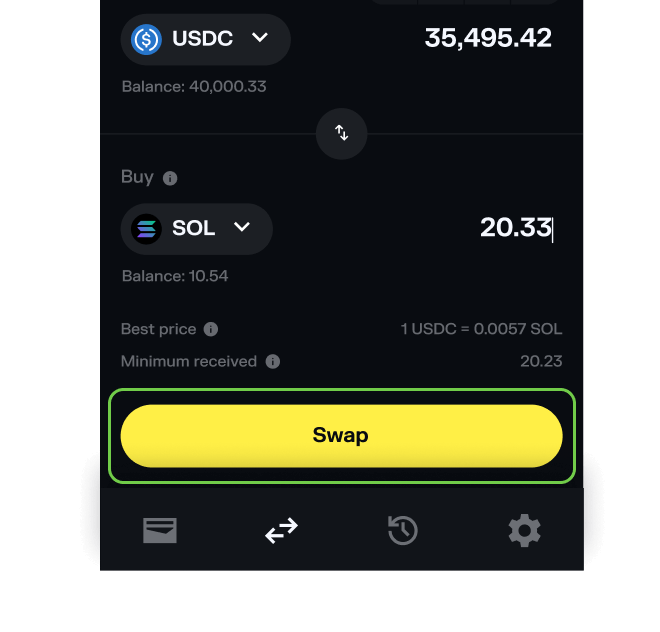
Hit "Swap", review the details, and then "Confirm". Your new One Last Play tokens will appear in your wallet once the transaction is complete.

Need more help? See our full guide to swapping tokens with Solflare.

Before buying One Last Play RETIRE double check potential risks

Risk status: Warning
Info
Mintable - Indicates if more tokens can be created after the initial launch.

Mintable

No
Info
Mutable - Enables changes to the token's metadata after creation.

Mutable

Yes
Info
Freezable - Grants control to freeze token accounts and prevent transfers.

Freezable

No
Info
Top holders - Percentage of the total supply held by the 20 largest wallets.

Top Holders %

103.79%

Last risk check date

5/1/2026, 3:40:52 PM
warn risk
RETIRE — Unverified token
Multiple tokens can use the same name and symbol. Always do your own research before trading. (Affects One Last Play).
warn risk
RETIRE copycat token
The One Last Play token may be using a verified token's symbol.

FAQ - How to Buy One Last Play with Solflare Wallet

What do I need before buying One Last Play?Collapse

To buy One Last Play, you need:
  • A Solflare Wallet (mobile app or browser extension — setup guide)
  • Some SOL or another SPL token in your wallet for swapping
Fiat purchase is not available for this token — you can only swap using crypto. Solana transaction fees are typically a fraction of a cent.

What if One Last Play doesn't show up after purchase?Expand

Your One Last Play should appear in your wallet automatically after purchase. If it doesn't:
  1. Tap "Add new asset" in your Solflare wallet under "Tokens"
  2. Paste the One Last Play contract address or name in the search bar
  3. Confirm and refresh your wallet view
If the token still doesn't show up, check the transaction status on Solscan and ensure you used the correct network and wallet address.

Are there any risks or fees when buying One Last Play?Expand

Swapping tokens in Solflare includes a small network fee (paid in SOL) and a DEX trading fee, both typically very low on Solana. If buying with fiat, fees are set by the payment provider (e.g., MoonPay or Stripe) and may vary by region and payment method.

Always verify token details and amounts before confirming. For unverified tokens, Solflare displays on-chain risk data to help you assess potential concerns before trading.
Learn more: How Solflare protects your assets

Can I store One Last Play on a hardware wallet?Expand

Yes. Solflare supports hardware wallet integration, allowing you to store One Last Play with an extra layer of security. Hardware wallets keep your private keys offline—even if your computer is compromised, your tokens remain protected.

You can purchase a Solflare-compatible hardware wallet from the Solflare Shop. Once connected, you can still swap, send, and manage One Last Play directly through Solflare while your keys stay on the hardware device.

Can I send One Last Play privately after buying?Expand

Yes. Solflare includes a built-in Privacy Aggregator that lets you send One Last Play without publicly linking your wallet to the recipient on-chain. Private Send is optional, disabled by default, and can be enabled per transaction—on both mobile and browser extension. No external tools or additional wallets needed.

How much does it cost to swap One Last Play on Solflare?Expand

Swapping One Last Play on Solflare involves two small costs: a Solana network fee (typically under $0.01) and a DEX routing fee. Solflare uses smart order routing across all major Solana DEXes to find the best available price, minimizing slippage. There are no hidden Solflare platform fees—what you see in the swap preview is what you pay.

Token names, symbols, images, and descriptions are sourced from on-chain metadata and third-party registries. Solflare does not endorse, verify ownership of, or claim any rights to third-party trademarks or copyrighted content.