How to buy The Savior with your Solflare wallet?

Easiest ways to buy, swap, or transfer JESUS directly into your Solflare wallet—step by step.

Looking to buy The Savior? You can buy JESUS easily using the Solflare Wallet, whether you prefer to use crypto or pay with fiat, like a credit card or bank transfer. Follow these steps to buy The Savior using the Solflare mobile app or the browser extension.

Once you own JESUS, Solflare lets you send it privately using the built-in Privacy Aggregator, and you can secure your holdings with a Solflare hardware wallet for maximum protection.

The Savior Buying Guide: How to Buy The Savior with Crypto Using Solflare Mobile app

Buy The Savior (JESUS) directly in the Solflare mobile app by swapping from SOL or other supported tokens. This guide walks you through each step, from funding your wallet to confirming your swap—no third-party DEX required.

Step 1 - Set up or Open your Solflare Wallet
Step 1

Set up or Open your Solflare Wallet

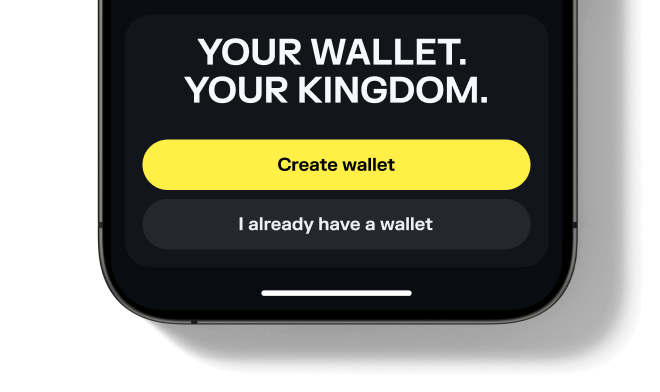
Download and open the Solflare mobile app on your device. Log in to your existing wallet, or create a new one directly in the app.

Don't have an account yet? See our beginner's guide to setting up a Solflare wallet.
Step 1 - Set Up or Open Your Solflare Extension Wallet
Step 1

Set Up or Open Your Solflare Extension Wallet

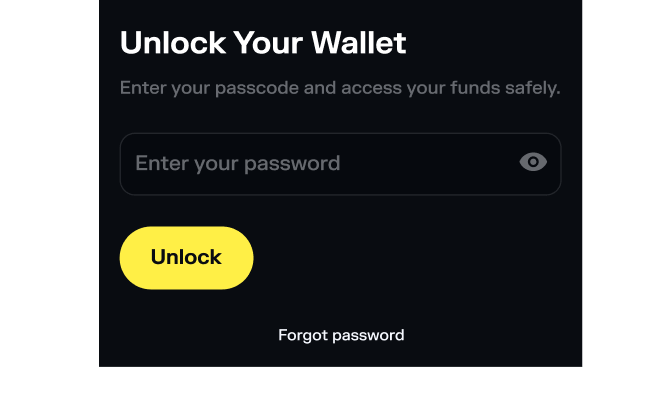
Download and install the Solflare extension for your browser. Once installed, open the extension and log in to your wallet. If you're new to Solflare, click "I need a new wallet" to create one in minutes.

Need help? Follow our step-by-step Solflare wallet setup guide.
Step 2 - Deposit SOL or another supported token
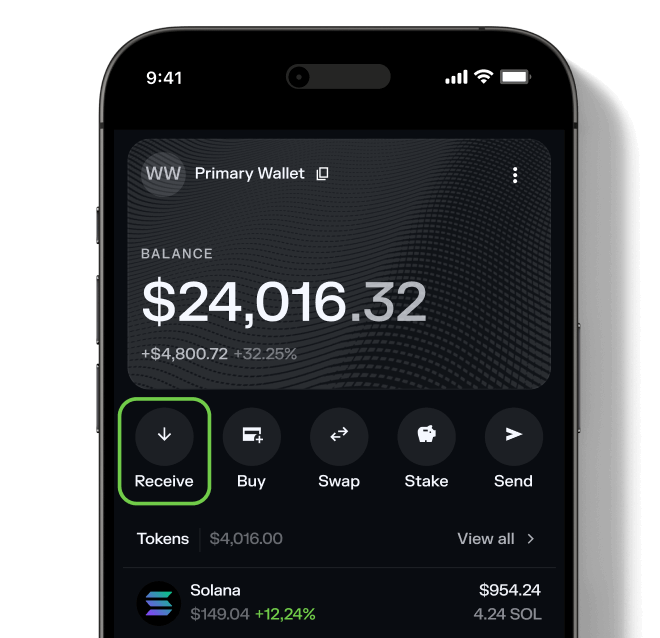
Step 2

Deposit SOL or another supported token
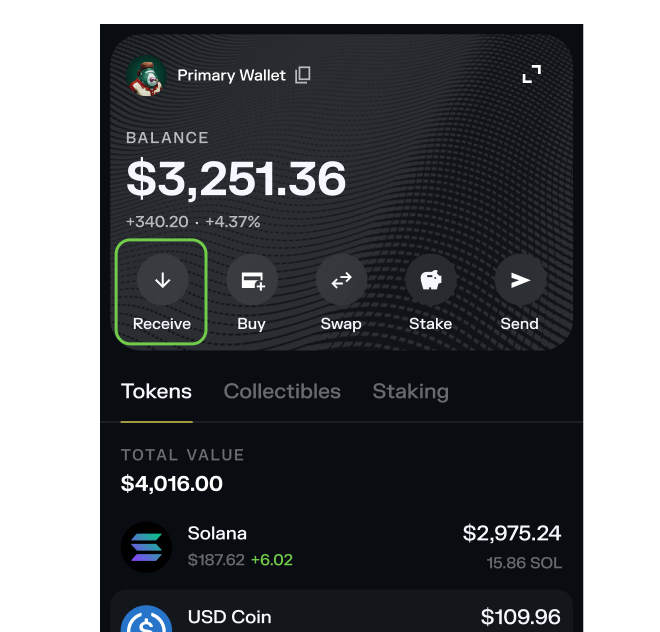
Transfer SOL or any supported SPL token into your Solflare wallet. You can send funds from a centralized exchange, another wallet, or even purchase SOL with fiat directly inside the Solflare app.

Need help? Read our detailed guide on transferring tokens to Solflare.
Step 2 - Deposit SOL or another supported token
Step 2

Deposit SOL or another supported token

Transfer SOL (or another SPL token) to your Solflare wallet. You can send it from a centralized exchange or another wallet, or buy it with fiat directly in the Solflare app.
Step 3 - Go to the Swap tab
Step 3

Go to the Swap tab

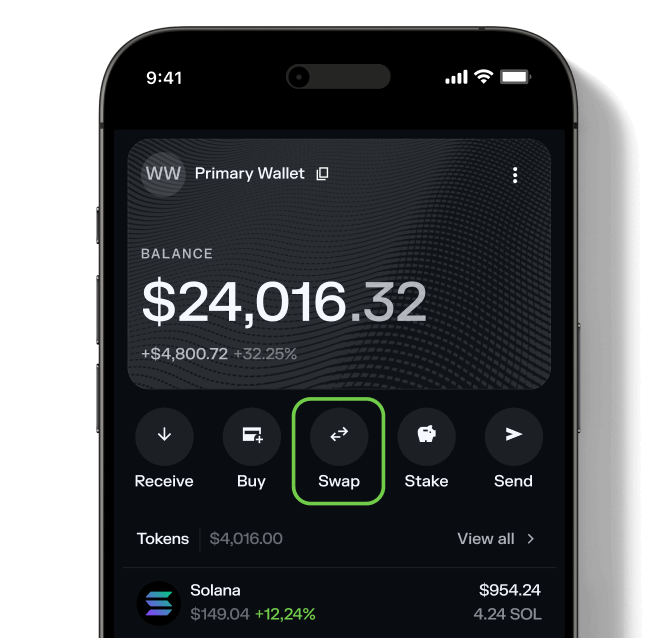
Tap on the Swap tab inside your wallet. This feature lets you trade tokens directly—no need for a separate DEX.
Step 3 - Go to the Swap tab
Step 3

Go to the Swap tab

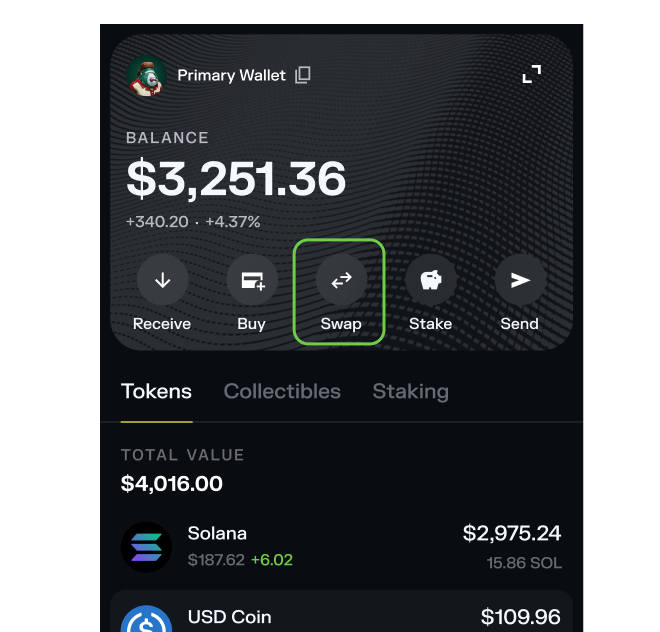
Navigate to the Swap section in your Solflare browser extension on the right side of your home screen (Portfolio tab) or click on the Trade tab from the menu on the left. Solflare's Swap feature lets you exchange tokens instantly—no need for third-party DEXs or leaving your wallet.
Step 4 - Select The Savior
Step 4

Select The Savior

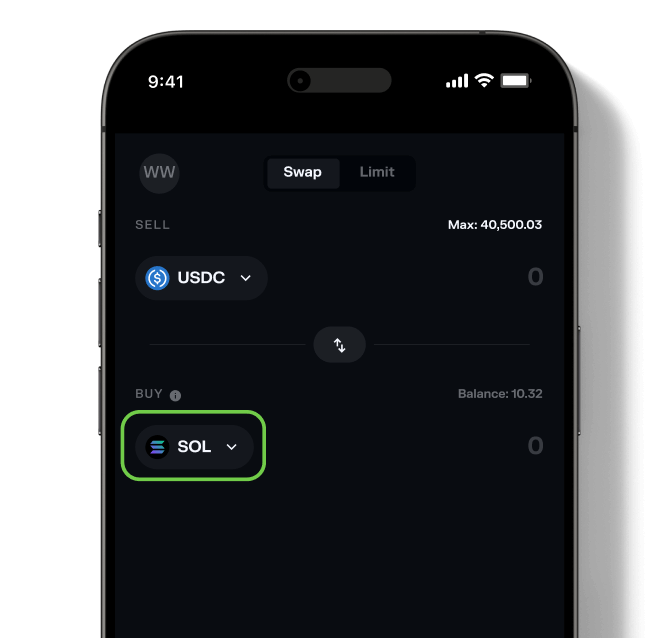
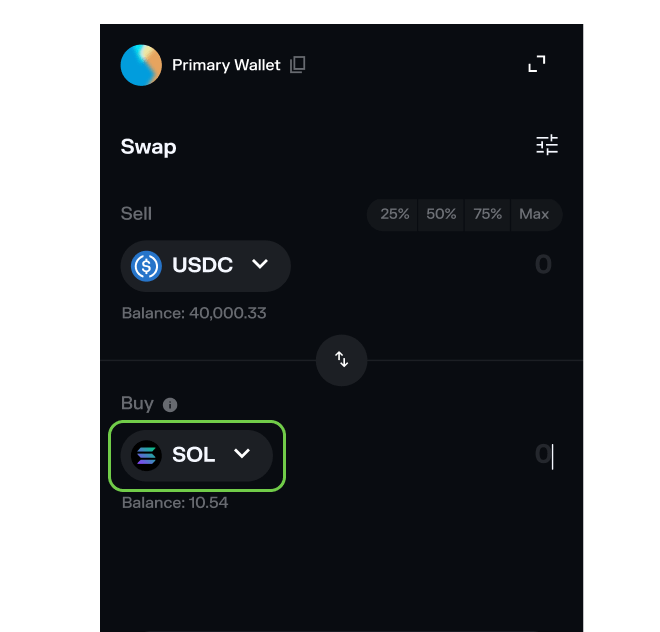
Choose The Savior (JESUS) as the token you wish to purchase. Then, select the asset you want to swap from (for example, SOL or USDC) and enter the amount you want to buy.

Want to see what else you can buy? Explore all tokens available on Solflare.
Step 4 - Select The Savior
Step 4

Select The Savior

Choose The Savior (JESUS) as the token you want to buy. Then select the token you wish to swap from (like SOL or USDC), and enter the amount you'd like to exchange.

Want to see all available tokens? Browse the full list of tokens supported on Solflare.
Step 5 - Confirm the swap
Step 5

Confirm the swap

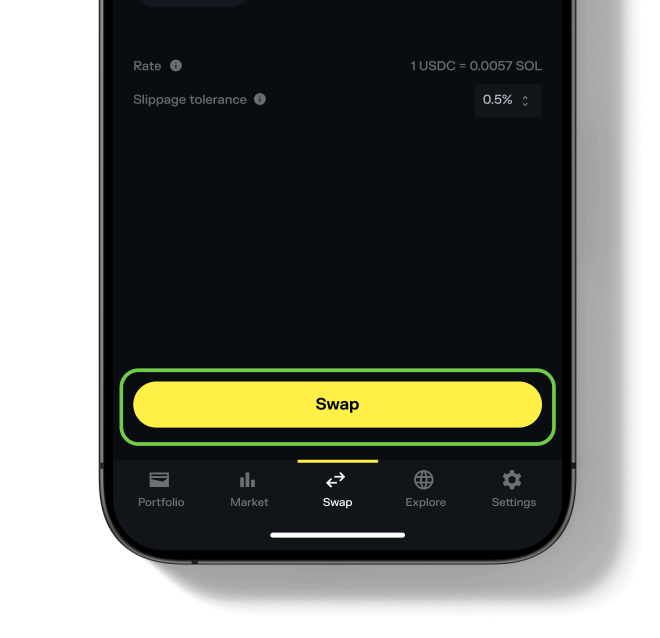
Hit "Swap", review the details, and then "Slide to approve". Your new The Savior tokens will appear in your wallet once the transaction is complete.

Need more help? See our full guide to swapping tokens with Solflare.
Step 5 - Confirm the swap
Step 5

Confirm the swap

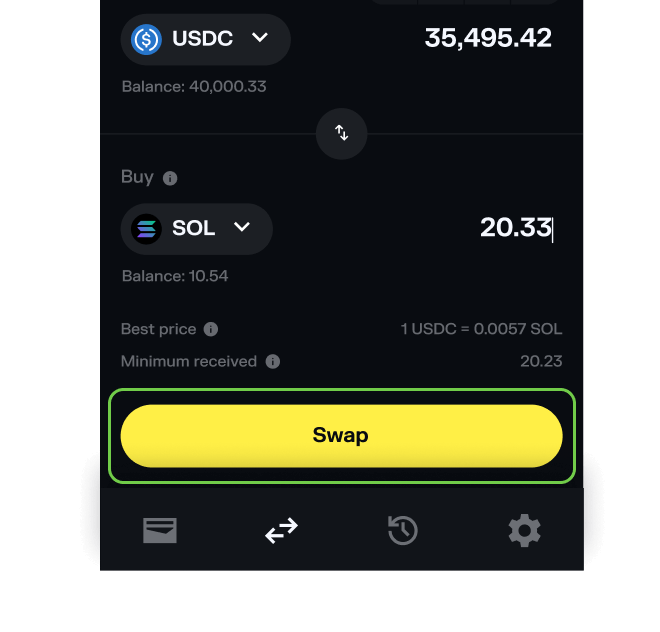
Hit "Swap", review the details, and then "Confirm". Your new The Savior tokens will appear in your wallet once the transaction is complete.

Need more help? See our full guide to swapping tokens with Solflare.

Before buying The Savior JESUS double check potential risks

Risk status: Danger
Info
Mintable - Indicates if more tokens can be created after the initial launch.

Mintable

No
Info
Mutable - Enables changes to the token's metadata after creation.

Mutable

Yes
Info
Freezable - Grants control to freeze token accounts and prevent transfers.

Freezable

No
Info
Top holders - Percentage of the total supply held by the 20 largest wallets.

Top Holders %

204.42%

Total holders

69

Last risk check date

5/22/2026, 5:18:08 AM
warn risk
JESUS — Unverified token
Multiple tokens can use the same name and symbol. Always do your own research before trading. (Affects The Savior).
danger risk
Top 10 JESUS holders high ownership
The top 10 wallets hold more than 70% of the The Savior supply.
danger risk
Single holder ownership in JESUS
One wallet holds a large amount of the The Savior supply.
danger risk
JESUS lp tokens largely unlocked
A large amount of The Savior LP tokens are unlocked, allowing liquidity to be removed at any time.
danger risk
Single holder ownership in JESUS
One wallet holds a large amount of the The Savior supply.
danger risk
Low JESUS liquidity
Low amount of liquidity in the The Savior pool.
danger risk
JESUS high ownership concentration
Top wallets hold more than 80% of the The Savior supply.
warn risk
Low number of LP providers for JESUS
Only a few users are providing liquidity for The Savior.
warn risk
JESUS metadata is mutable
The The Savior token's metadata can be changed by the owner.

Frequently asked questions about buying The Savior

What do I need before buying The Savior?Collapse

To buy The Savior, you need: Fiat purchase is not available for this token — you can only swap using crypto. Solana transaction fees are typically a fraction of a cent.