Perpetual futures are available directly inside your Solflare wallet. Go long or short on SOL, BTC, ETH, and more — without leaving the app where the rest of your portfolio already lives.
Perpetual futures, or “perps”, are contracts that let you trade an asset’s price with leverage and no expiry date, without ever owning the asset itself. Most guides on trading perpetual futures point you toward a centralized exchange. Trading them from a self-custody wallet means you sign every transaction from your own wallet, and your collateral stays on Solana for the life of the position, held by the protocol’s onchain programs.
This guide walks through the full flow of trading Solflare Perps: opening a position, managing it, and closing it out. Here’s how to trade perps directly from your Solflare wallet, on both mobile and desktop.
A Solflare wallet (mobile app or browser extension)
USDC in your wallet; this is what funds your collateral when you open a position
You won’t need SOL to open, modify, or close a position; network fees and account rent are currently sponsored
When you open a position, USDC from your wallet becomes your collateral automatically, in the same transaction you’re already signing. There’s no separate deposit step.
Your Perps balance is a second, optional source of USDC that builds up over time from closed positions, and you can use it instead once you have some, or if you’ve funded your Phoenix account directly.
If you don’t have a Solflare wallet yet, set one up here.
Finding Perps and getting around
On mobile: Scroll down your portfolio home screen to the Perps section. Before you open any positions, it shows a row of available markets with their leverage and 24h price change. Once positions are open, the section shows each trade live with direction, leverage, current value, and unrealized P&L. Tap Perps to open the full Perps page.
On desktop: Click Perps in the left sidebar. The desktop experience has two views accessible via tabs at the top of the page: Trade (the full trading terminal) and Portfolio (your positions dashboard). Most trading happens from the Trade view.
The Perps page
At the top of the Perps page, you’ll find two stat cards: Positions balance (the total value of your open positions) and Unrealized PnL (your running profit or loss across all open trades).
Below those is your Perps balance — the USDC in your account that isn’t currently committed to an open position. This is what’s available to open new trades or withdraw. Tap the info icon for a full explanation of where this balance comes from.
Open positions lists all your active trades with direction, leverage, size, and live P&L.
Markets shows the full list of tradeable assets. Each entry shows the asset name, maximum leverage, current price, 24h volume, and open interest. Tap any asset to open its perp page.
At the bottom of the page, the Learn section has guides on perpetual futures and how they work (a must-read if you’re new to this type of trading).
Opening a position
01
02
03
04
05
06
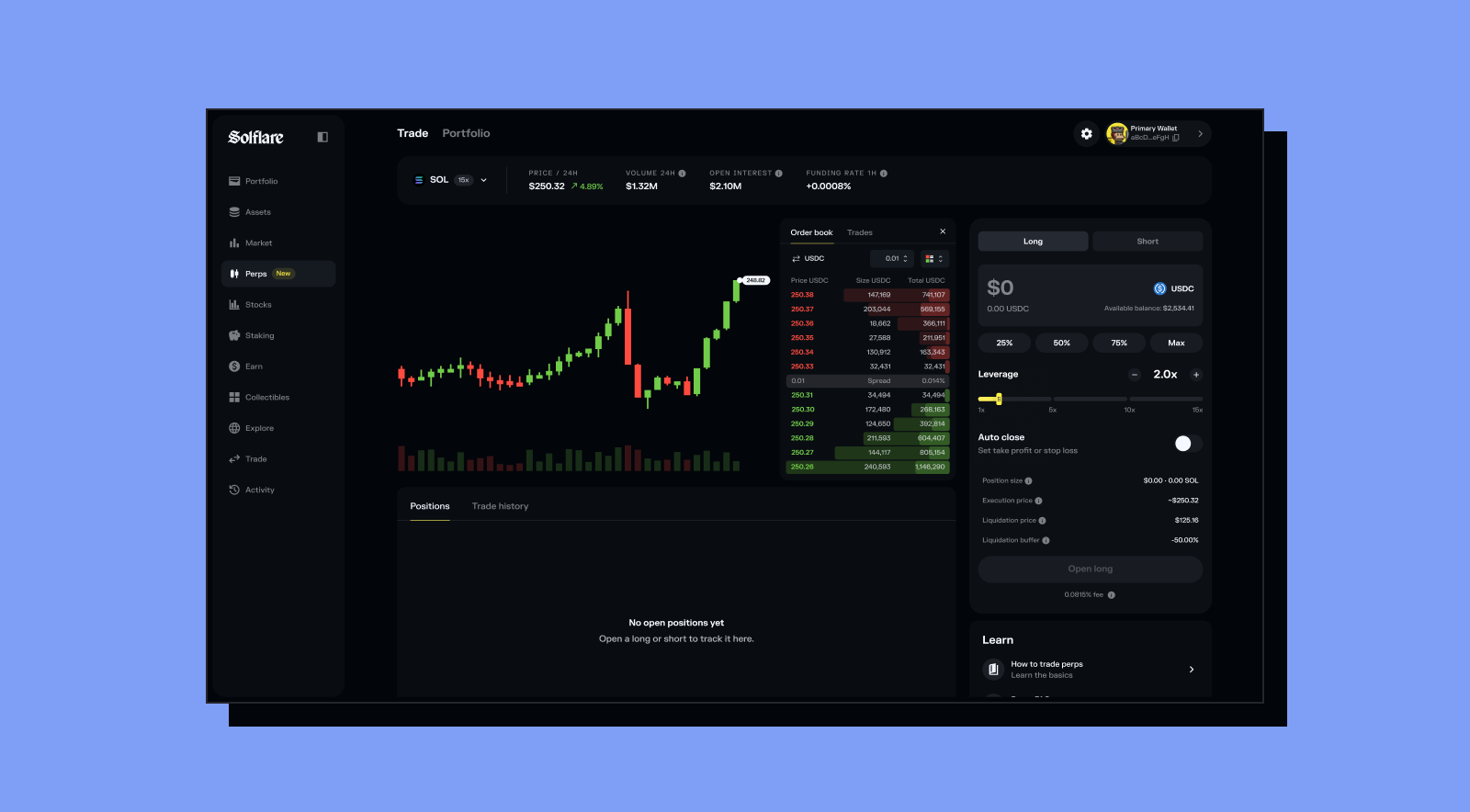
The desktop trading interface is a full terminal. Once you click Perps in the sidebar, you land on the Trade view, which has three panels: the price chart on the left, an optional order book in the centre, and the order entry panel on the right.
Step 1: Select a market
Use the market dropdown at the top left of the chart. It shows the currently selected asset (e.g. SOL 20x) with a caret to switch. Click it to browse available markets. The market stats bar across the top shows the current price, 24h change, volume, open interest, and funding rate 1h for whichever market you have selected.
Step 2: Choose direction
At the top of the right-side order entry panel, toggle between Long and Short. Long is selected by default.
Step 3: Enter your collateral
The collateral input is at the top of the order panel, showing USDC as the default currency. Your available balance is shown to the right. Use the 25%, 50%, 75%, or Max shortcuts, or type an amount directly. As you enter the amount, the order summary below updates in real time, showing your position size, execution price, liquidation price, and liquidation buffer.
Step 4: Set leverage
The leverage slider sits below the collateral input. Drag it left or right between 1x and the market maximum, or use the – and + buttons for precise adjustment. The liquidation price and liquidation buffer update as you move it.
Keep an eye on the liquidation buffer as you adjust leverage – this is your distance from liquidation. The smaller it gets, the less room you have before a normal price swing puts your position at risk.
Step 5: Set Auto Close (optional)
Toggle Auto Close on using the switch to the right of the label. This enables take profit and stop loss. You can configure the specific levels from the position view after opening, or set them in advance from the order panel.
Keep in mind that auto-close fills at the next available market price once triggered, not necessarily your exact target, so in a fast-moving market the actual exit can land somewhat worse than the level you set.
Step 6: Review the order summary
Before clicking Open long or Open short, review the summary rows below the Auto close toggle:
Position size — your total market exposure in dollars and tokens
Execution price — the estimated fill price
Liquidation price — the price at which your position gets automatically closed
Liquidation buffer — your distance from liquidation as a percentage Fee — up to 0.085% total, shown below the confirm button
Click Open long or Open short to confirm. The order broadcasts from your wallet immediately.
The order book (optional)
The center panel shows the live order book and recent trades for the selected market. You can close it by clicking the X to give the chart more space — it doesn’t affect your ability to trade.
Viewing your open positions on desktop
All open positions appear in the Positions tab at the bottom of the Trade page, showing: Market, Position size, Entry price, Current price, Liq price, Collateral, PnL, Funding, and Auto close levels. You can also switch to the Portfolio view at the top for a full-screen positions dashboard with a PnL chart and aggregate stats.
01
02
03
04
05
Step 1: Choose a market and direction
From the Perps page, tap any asset in the Markets list to open its perp page. You’ll see the candlestick chart, market stats (24h volume, open interest, funding rate), and a brief trade history for that market.
Tap Long if you think the price will rise. Tap Short if you think it will fall.
Step 2: Enter your collateral
The large number at the top of the order screen is your collateral, which is the USDC you’re committing to this position. Your available balance is shown to the right. Use the 25%, 50%, 75%, or Max shortcuts to fill quickly, or type an amount manually.
Below the amount you’ll see the resulting leverage, liquidationprice, and positionsize in both dollars and tokens, updating in real time as you type.
Reminder: A $50 collateral position at 10x leverage behaves like a $500 spot trade — gains and losses both scale accordingly.
Step 3: Adjust leverage
Tap the Leverage row to change your multiplier. The liquidation price updates as you adjust. Higher leverage means a larger position from the same collateral, but also a liquidation price much closer to your entry.
Each market has its own maximum leverage, set by Phoenix and subject to change. The current maximum for any market is always shown in the app.
Higher leverage puts your liquidation price closer to your entry, leaving less room for a normal price swing before your position is at risk. Lower leverage leaves more of that room. These are tradeoffs between capital efficiency and margin for error.
Step 4: Set Auto Close (optional)
Tap the Autoclose row to set a take profit and stop loss. You can enter a trigger price directly or use the +5%, +10%, +25%, +50% shortcuts to set targets relative to your entry. Both TP and SL levels appear as lines on the chart once set.
Auto Close triggers when the price reaches your target and fills at the next available market price. In a fast-moving market, that fill can land somewhat worse than the level you set. You don’t need to be in the app for it to execute.
Step 5: Review and confirm
Before tapping Open long or Open short, check the order summary:
Collateral — the USDC you’re committing Leverage — the multiplier applied Liquidation price — if the market reaches this, your position closes automatically and the collateral behind it is used to cover the loss, sometimes with a small remainder returned Position size — your total market exposure in dollars and tokens Execution price — the estimated fill price Auto close levels — your TP and SL if set Fee — shown at the bottom of the screen (fee for trading perps through Solflare is up to 0.085%, charged on both entry and exit) Tap Open long or Open short to confirm. The order signs and broadcasts from your wallet. Your position is live.
Managing an open position
Tap any open position to open the position view.
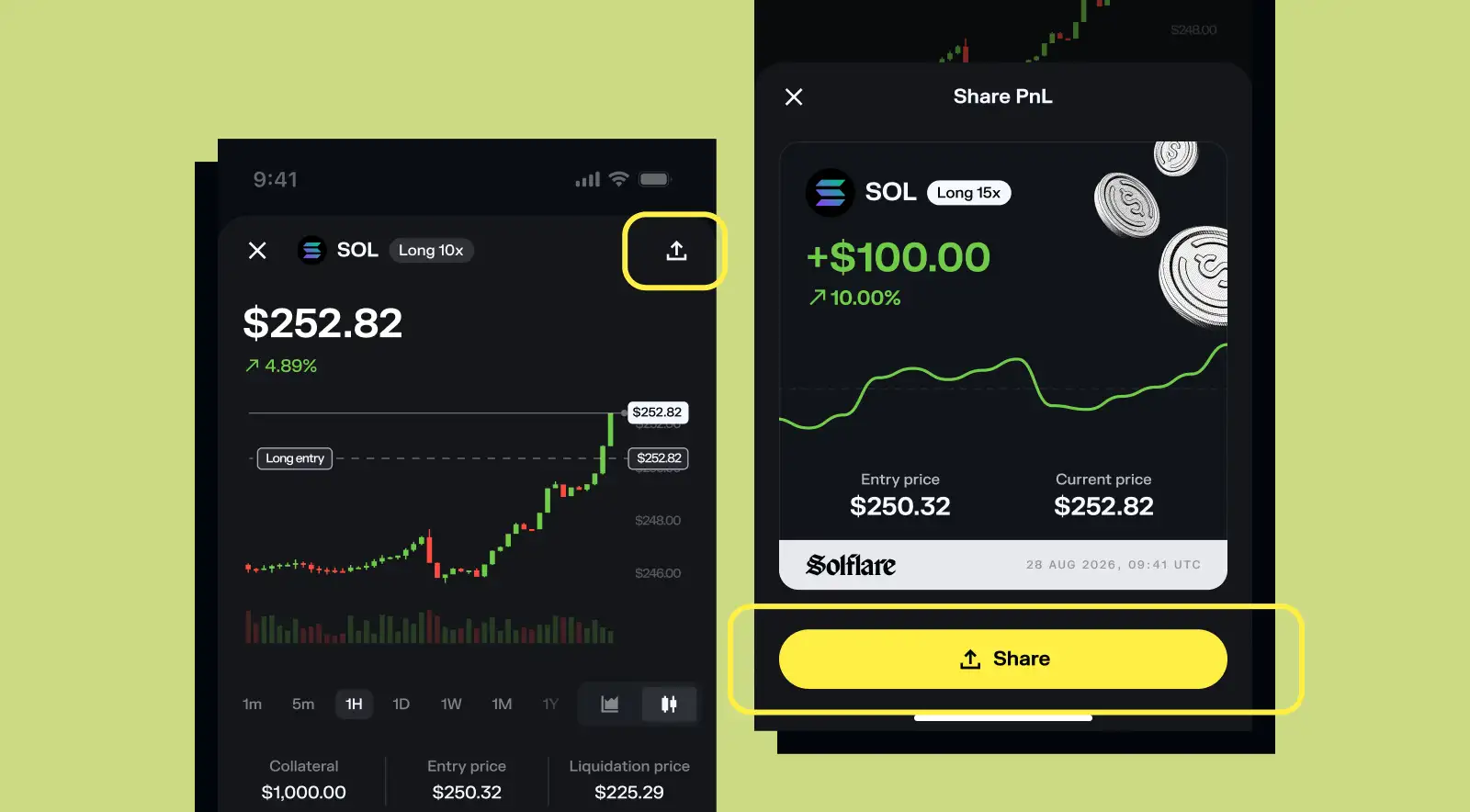
The chart shows your entry price, take profit, and stop loss levels marked directly as horizontal lines. Below the chart: Collateral, Entry price, and Liquidation price in a stats bar. Below that: Position size and Unrealized PnL side by side, and your Auto close row showing current TP and SL levels.
Market stats and Trade history for that asset sit below your position info.
Adjusting your position
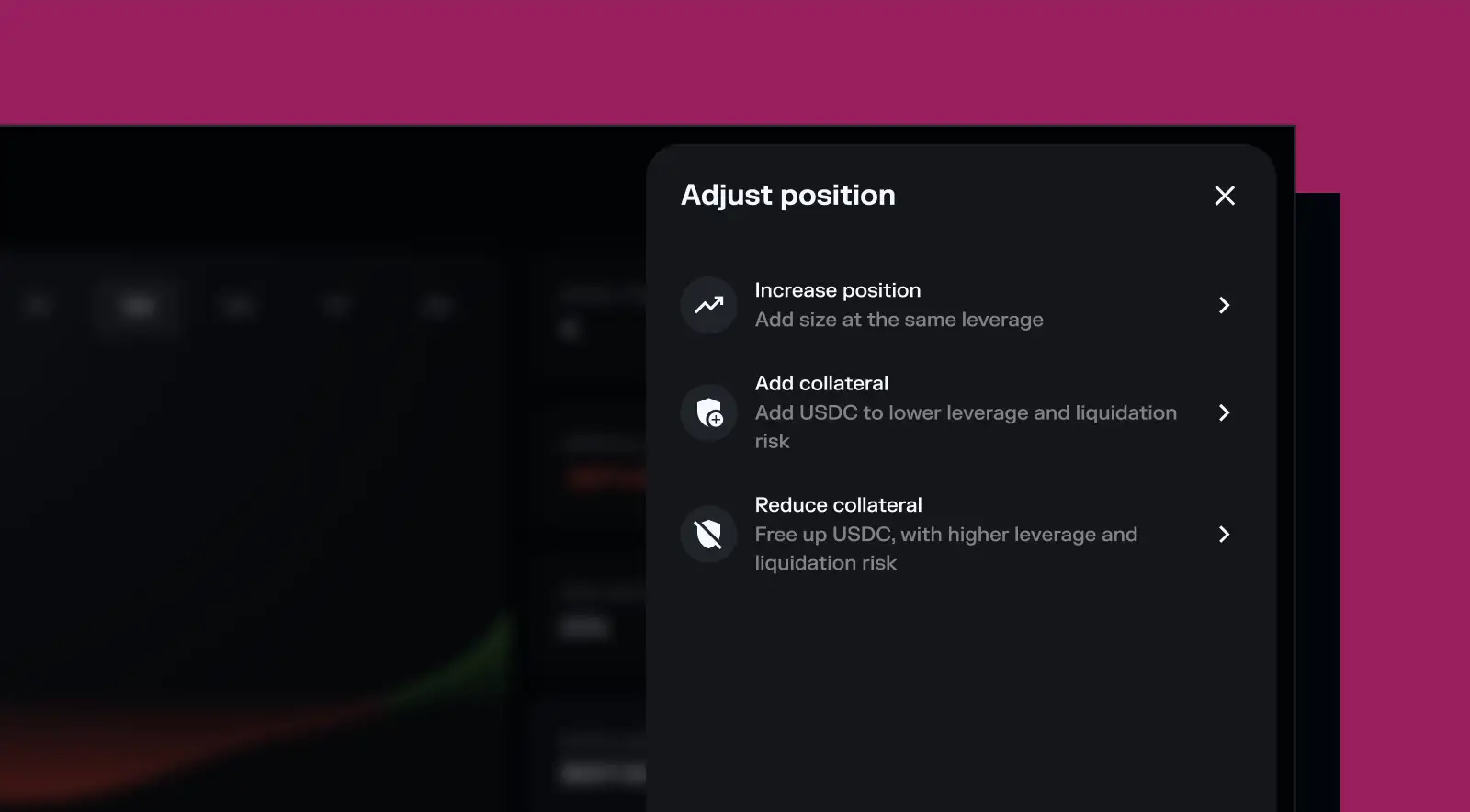
Tap Adjust to open the adjustment menu. Three options appear:
Increase position: add size at the same leverage. Useful if the trade is going your way and you want more exposure. The screen shows how the collateral, position size, and execution price will change before you confirm.
Add collateral: deposit more USDC into the position without increasing your size. This lowers your effective leverage and moves your liquidation price further away. The screen shows the exact impact on leverage, liquidation price, and liquidation buffer as you type the amount.
Reduce collateral: withdraw USDC from the position back to your Perps balance. This raises your effective leverage and moves the liquidation price closer. Use this to free up margin when a position is healthy and you want to deploy that USDC elsewhere — but be aware of the tradeoff.
Updating Auto Close
On mobile: Tap the Auto close row on the position page. Set trigger price and profit/loss percentage for both take profit and stop loss. Tap Save to apply.
On desktop: Click the pencil icon in the Auto close column for any position in the table. The same TP/SL editor opens as a side panel.
Sharing your PnL on an open position
Tap the share icon in the top right corner of the position page to generate a Solflare-branded PnL card showing your current unrealized gain or loss. You can share it directly from the app.
If a position is going against you
If the market is moving toward your liquidation price, you have three options: add collateral to push the liquidation price further away, reduce your position size to free up collateral, or close and accept the loss. The liquidation price is always visible on the position page — keep track of it relative to where the price is trading.
Closing a position and viewing history
Closing manually
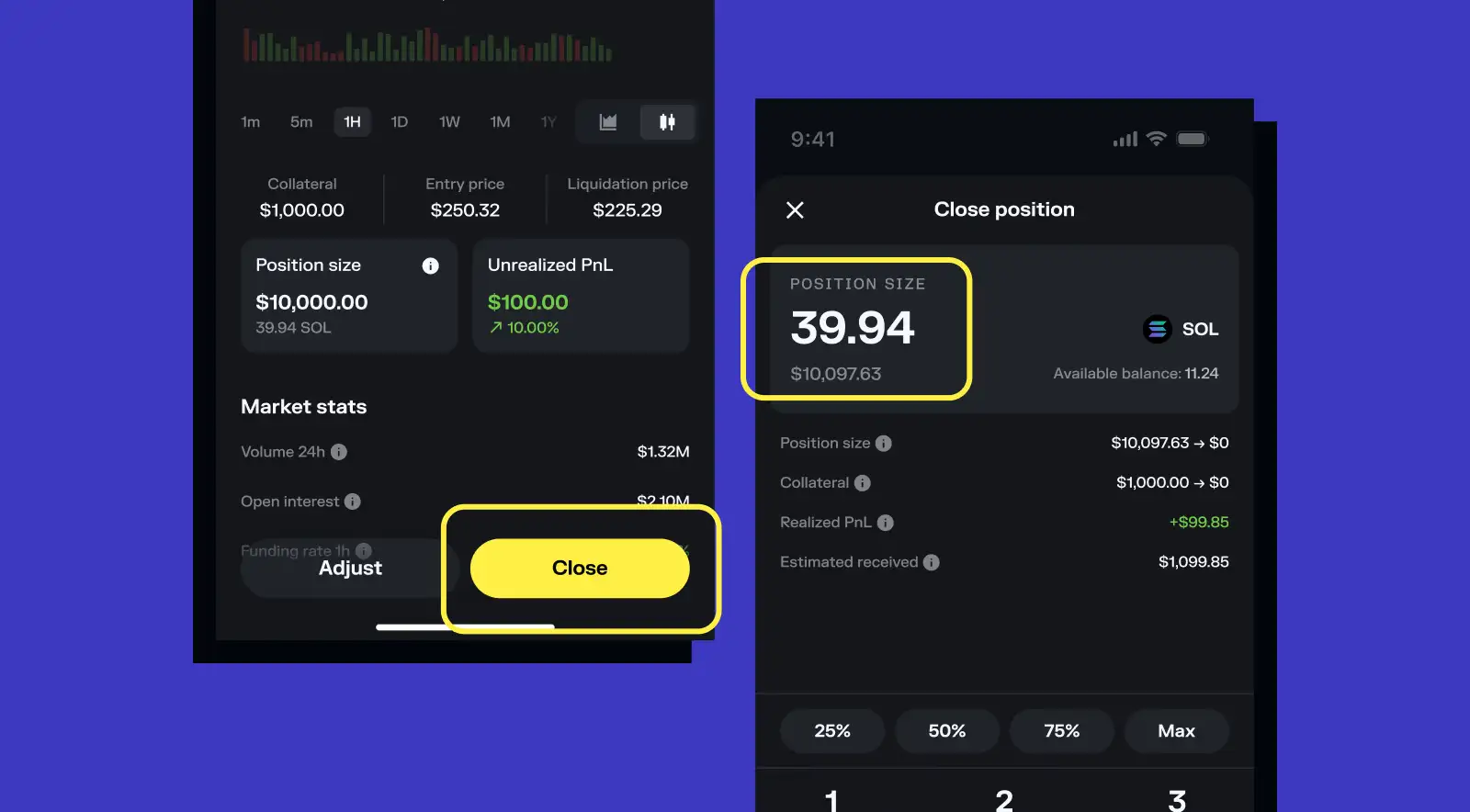
From the position page, tap Close. A single screen handles both full and partial closes.
The screen opens prefilled to a full close. Use the 25%, 50%, 75%, or Max shortcuts, or type an amount less than the full size, to close only part of your position. As you adjust, the screen shows:
Position size change — what remains open after closing
Collateral change — how much collateral is released
Realized PnL — your profit or loss on the portion being closed
Estimated received — the total USDC returning to your Perps balance
Tap Close long or Close short to confirm. Closed proceeds return to your Perps balance immediately.
To do a partial close, simply enter less than the full position size. The rest of the position stays open and continues running.
Closing via Auto Close
If you set a take profit or stop loss, the position closes automatically when the price hits your target. When an Auto
Close fires, the result appears in your Trade history with a Take profit or Stop loss label.
Sharing your PnL after closing
After a position closes, Solflare generates a shareable PnL card showing your percentage return, entry and exit price, position size, and fee. The card also includes a small price chart covering the position’s timeframe, with hourly price points. Tap Share to post it.
Withdrawing your Perps balance
To move funds from your Perps balance back to your wallet, tap Withdraw on the Perps page. Enter the amount, use the shortcuts if needed, and confirm. The screen shows how your Perps balance will change before you confirm.
You can only withdraw funds not currently committed to an open position. Note that if you have limit orders or cross-margin positions on Phoenix, part of your balance may be reserved and not available to withdraw from Solflare.
Keep in mind: Withdrawals go through Phoenix, so they’re not always instant, in some cases funds can take a moment to arrive, or land in your Phoenix balance rather than your wallet immediately.
Trade history
Tap the clock icon in the top right corner of the Perps page to open your full trade history. At the top: your cumulative Realized PnL and Win rate across all closed trades. Below that, entries are grouped by date showing each open, close, take profit, stop loss, and liquidation event with the P&L outcome of each.
Trade perps from your Solflare wallet
Perps are live in your Solflare wallet. Open the app, find Perps in your portfolio, and browse available markets. The full order summary is shown before any position opens — review it before you confirm.
A leveraged contract that lets you trade the price movement of an asset without owning it. No expiry date — you hold it until you close it or it gets liquidated. Long profits from price rises, short profits from price falls. Leverage amplifies both outcomes.
What is leverage and how does it work?
Leverage lets you control a larger position than your collateral alone allows. At 10x leverage, $50 of collateral gives you $500 of market exposure. A 1% price move in your favor returns 10% on your collateral. A 1% move against you loses 10%. Higher leverage means the liquidation price is closer to your entry. Maximum leverage varies by market.
What is the liquidation price?
The price at which your position closes automatically because your collateral has fallen too low for the venue to keep it open safely. A small remainder can sometimes be returned afterward, though that’s not guaranteed.
What is the liquidation buffer?
The percentage distance between the current price and your liquidation price. A larger buffer means more room before liquidation. Adding collateral increases the buffer. Reducing collateral or increasing leverage decreases it.
What is isolated margin?
Each position uses only the collateral you assigned to it. If one position gets liquidated, that collateral is used to cover the loss, sometimes with a small remainder returned; your other open positions and wallet assets are unaffected.
What is the funding rate?
A periodic payment exchanged between long and short traders that keeps the perp price aligned with spot. If the funding rate is positive, longs pay shorts. If negative, shorts pay longs. The current 1h rate is visible in the market stats bar on both platforms.
What does it cost to trade?
The fee for trading perps through Solflare is up to 0.085% total, charged on both entry and exit, so a full round trip costs 0.17%. The exact breakdown is shown before you confirm every order.
What is the Perps balance?
USDC in your account not currently committed to open isolated positions. It accumulates from closed trades, TP/SL triggers, and Phoenix activity. You can withdraw it to your wallet, though funds not tied up in an open position, limit order, or cross-margin position on Phoenix are the only ones available to withdraw at a given moment.
Can I use Solflare Perps if I already trade on Phoenix?
Yes. Your Solflare account and Phoenix account are the same. Positions opened on either are visible and manageable from both. Note that cross-margin positions opened on Phoenix may reserve part of your balance and make it unavailable to withdraw from Solflare.
Where is Solflare Perps available?
Supported regions only. US and UK retail users are not eligible. If you’re in a restricted region, you won’t be able to turn on Perps in the app. There’s no workaround, availability is tied to where you’re located.